Blog / Fix MT5 errors · Expert Advisors · Backtesting · Trade errors
Why Your EA Works in the Tester but Fails Live
Why an MT5 Expert Advisor behaves differently in the Strategy Tester and on a live account, and how to diagnose execution, broker and market differences.
· 9 min read
Your Expert Advisor performs well in the MetaTrader 5 Strategy Tester, but once you install it on a live account, it starts behaving differently.
It may stop opening trades, execute at unexpected prices, miss trading signals, or produce results that differ significantly from the backtest.
This does not automatically mean the EA's strategy is defective. The Strategy Tester cannot reproduce every live trading condition. Differences in market data, spreads, execution, broker restrictions, and account settings can all affect its behaviour.
The important thing is to identify whether the problem comes from the EA's code, its trading strategy, or the live trading environment.
This guide explains the most common causes and how to investigate them.
1. The Strategy Tester Cannot Reproduce Every Live Trading Condition
The MT5 Strategy Tester simulates trading using historical market data and the testing environment's execution model.
However, even detailed tick-based testing cannot reproduce every condition encountered on a live trading server.
For example, an EA may receive an execution at an expected price during testing. In live trading, the market may move before the broker processes the request. The order may experience slippage, a requote, or another execution response.
Real-tick testing improves the historical price data used for simulation, but it does not recreate every live condition, including:
- Actual order-book liquidity.
- Execution queues and server processing delays.
- Network latency.
- Live slippage and partial fills.
- Every broker-specific execution restriction.
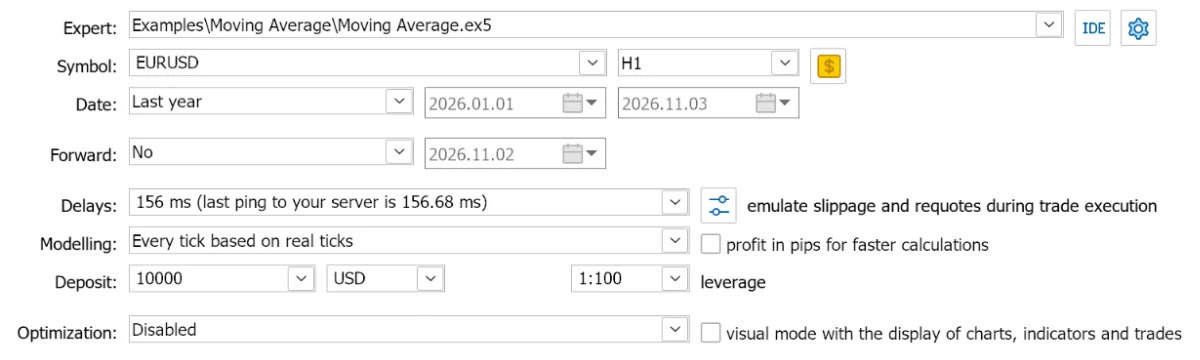
How to fix it:
Choose a testing mode that matches the EA's trading logic.
If your strategy depends on intrabar price movements, stop-loss triggers, or frequent entry and exit decisions, consider Every tick based on real ticks when suitable historical tick data is available. How to backtest an EA in the Strategy Tester covers the settings.
Do not rely exclusively on simplified modelling modes when the EA's performance depends on precise price movements.
Also, remember that even a successful real-tick backtest is not proof that live execution will produce identical results.
2. Variable Spreads Can Change Your EA's Performance
An EA optimised around low spreads may struggle when the live broker's spread increases.
This is particularly important for scalping systems and strategies targeting small price movements.
For example, suppose your EA expects a spread of 10 points but encounters 35 points during a volatile market period. The additional trading cost can reduce expected profitability or make an entry no longer worthwhile.
A backtest using unusually favourable spread conditions may therefore produce results that are difficult to reproduce live.
How to fix it:
- Use realistic historical spread conditions when testing.
- Avoid optimising around unusually favourable spreads.
- Implement a maximum-spread filter if the strategy requires one.
- Check the current spread before submitting an order.
Use SymbolInfoTick() to retrieve the latest Bid and Ask prices:
MqlTick tick;

if(!SymbolInfoTick(_Symbol, tick))
{
   Print("Unable to retrieve market prices.");
   return;
}

if(tick.ask <= 0 || tick.bid <= 0)
{
   Print("Invalid market quote.");
   return;
}

double spread = (tick.ask - tick.bid) / _Point;

Print("Current spread: ", spread, " points");
You can then compare the calculated spread with the maximum allowed by your strategy before considering an entry.
The threshold should be based on the instrument and strategy. A suitable limit for one EA may be inappropriate for another.
3. Live Execution Can Reject Orders That Pass in the Tester
The Strategy Tester does not expose an EA to every trade-server response that can occur in live trading.
Depending on the broker and execution conditions, live orders may encounter:
- Requotes or price changes.
- Off quotes or unavailable prices.
- Partial fills.
- Insufficient margin.
- Invalid stop levels.
- Unsupported order filling policies.
- Market closures or trading restrictions.
If your EA does not handle these responses correctly, it may stop opening trades or manage existing positions incorrectly.
One important MQL5 distinction is that a successful call to CTrade::Buy() does not necessarily mean the broker executed the trade. You must also inspect the trade server's return code.
#include <Trade/Trade.mqh>

CTrade trade;

void OpenBuy()
{
   bool sent = trade.Buy(0.10, _Symbol);

   uint retcode = trade.ResultRetcode();

   Print("Buy function result: ", sent);
   Print("Server retcode: ", retcode);
   Print("Description: ",
         trade.ResultRetcodeDescription());

   Print("Deal: ", trade.ResultDeal());
   Print("Order: ", trade.ResultOrder());
}
The return code helps identify what happened to the request.
For example:
| Return code | Meaning | What to investigate |
|---|---|---|
| 10019 | Not enough money | Available margin and requested volume |
| 10016 | Invalid stops | Stop distance and current market prices |
| 10030 | Invalid filling mode | Supported symbol filling policies |
| 10018 | Market closed | Trading session and market availability |
How to fix it:
Check the server response after every important trade operation. Handle each relevant error according to its cause instead of treating every rejected request as the same problem.
Also verify the resulting order, deal, or position before assuming that a request was executed.
4. Broker Symbol Specifications May Differ
An EA may be developed and tested using one set of symbol specifications, then deployed with a broker that applies different trading restrictions.
These differences can cause orders to be rejected even when the EA's trading logic is correct.
Important symbol properties include:
- Minimum and maximum trading volume.
- Permitted volume increments.
- Minimum stop distance.
- Freeze level.
- Supported filling modes.
- Tick size.
- Trading sessions.
For example, an EA may request a 0.01-lot position when the live broker requires a minimum volume of 0.10 lots.
Similarly, a stop-loss distance accepted by one broker may be rejected by another because its minimum stop-distance requirement is different.
How to fix it:
Retrieve the symbol's actual trading properties instead of hardcoding values.
double minLot = 0.0;
double maxLot = 0.0;
double lotStep = 0.0;

long stopLevel = 0;
long freezeLevel = 0;

SymbolInfoDouble(_Symbol,
                 SYMBOL_VOLUME_MIN,
                 minLot);

SymbolInfoDouble(_Symbol,
                 SYMBOL_VOLUME_MAX,
                 maxLot);

SymbolInfoDouble(_Symbol,
                 SYMBOL_VOLUME_STEP,
                 lotStep);

SymbolInfoInteger(_Symbol,
                  SYMBOL_TRADE_STOPS_LEVEL,
                  stopLevel);

SymbolInfoInteger(_Symbol,
                  SYMBOL_TRADE_FREEZE_LEVEL,
                  freezeLevel);

Print("Minimum lot: ", minLot);
Print("Maximum lot: ", maxLot);
Print("Lot step: ", lotStep);
Print("Stop level: ", stopLevel);
Print("Freeze level: ", freezeLevel);
Use these values to validate order volume and stop distances before submitting or modifying trades.
Also check the symbol's supported filling mode and trading permissions. Do not assume that different brokers or account environments use identical specifications.
5. Your Live Account May Use a Different Margin Mode
MT5 supports different account configurations, and one important distinction is the difference between hedging and netting.
A hedging account allows multiple separate positions on the same symbol, including opposing Buy and Sell positions.
A netting account maintains one net position per symbol. An opposite trade can reduce, close, or reverse the existing position rather than creating a separate position.
For example, an EA designed to maintain independent Buy and Sell positions may behave differently on a netting account. Its Sell order could reduce or reverse the existing Buy position instead of opening a separate trade.
Other account conditions can also affect execution, including leverage, margin requirements, commissions, swaps, and trading permissions.
How to fix it:
Check the account's margin mode before deploying the EA.
ENUM_ACCOUNT_MARGIN_MODE marginMode =
   (ENUM_ACCOUNT_MARGIN_MODE)
   AccountInfoInteger(ACCOUNT_MARGIN_MODE);

if(marginMode == ACCOUNT_MARGIN_MODE_RETAIL_HEDGING)
{
   Print("Account uses hedging mode.");
}
else if(marginMode == ACCOUNT_MARGIN_MODE_RETAIL_NETTING)
{
   Print("Account uses netting mode.");
}
else if(marginMode == ACCOUNT_MARGIN_MODE_EXCHANGE)
{
   Print("Account uses exchange margin mode.");
}
Make sure the EA's position-management logic supports the account configuration.
An EA that relies on multiple independent positions should not be deployed on a netting account without adapting its trade-management logic.
6. The Live Market May Expose Weaknesses in the Strategy
Sometimes the EA is functioning correctly, but the market conditions have changed.
A strategy optimised during a trending market may struggle when conditions become range-bound. Similarly, a system designed for low-volatility sessions may produce different results during periods of rapid price movement.
Over-optimisation can make this problem worse. An EA may be configured so precisely around historical data that its performance deteriorates when exposed to new market conditions.
How to fix it:
Evaluate the strategy across different market conditions rather than relying on one historical period.
Focus on:
- Testing different historical periods.
- Comparing trending and ranging conditions.
- Evaluating performance across different volatility levels.
- Using out-of-sample data that was not included in optimisation.
- Forward-testing the EA on a demo account.
If performance collapses outside the optimisation period, investigate whether the strategy is too dependent on specific historical conditions.
This is a strategy robustness issue, not necessarily a programming error.
7. Network and VPS Problems Can Interrupt EA Operations
An EA running on a local computer depends on the MT5 terminal maintaining a connection to the broker's trading server.
If the computer shuts down, the internet connection drops, or the terminal disconnects, the EA may stop receiving ticks and processing new trading signals.
This can affect strategies that depend on continuous monitoring or frequent position-management decisions.
How to fix it:
- Check the terminal's connection status.
- Inspect the Experts and Journal tabs for disconnections and runtime errors.
- Make sure the computer or VPS does not shut down unexpectedly.
- Confirm that the EA is attached to the correct chart.
- Verify that automated trading is enabled.
A VPS can help keep the terminal running continuously, but it does not eliminate execution delays or guarantee better trade prices.
Also, distinguish between server-side and EA-managed protection. Stop-loss and take-profit orders already placed on the broker's server can remain active during a terminal disconnection. However, locally executed logic such as trailing stops, custom exit conditions, and dynamic trade management may stop working until the EA reconnects.
8. Diagnose the Actual Live Trading Failure
Instead of changing several EA settings at once, identify exactly what is happening and investigate the corresponding cause.
| Observed behaviour | What to investigate |
|---|---|
| EA does not open trades | Entry conditions, trading permissions, spread filters, and symbol restrictions |
| Order requests are rejected | Server return codes, volume, margin, stop levels, and filling mode |
| Trades open at unexpected prices | Spread, slippage, execution conditions, and price calculations |
| EA opens fewer trades than expected | Session filters, rejected requests, signal conditions, and tick availability |
| Stop-loss or take-profit modification fails | Stop level, freeze level, and current market prices |
| EA stops managing open trades | Terminal connection, runtime errors, and position-selection logic |
| Backtest results differ significantly from live results | Historical data, modelling, trading costs, account settings, and execution differences |
The MT5 Experts and Journal tabs are useful starting points for investigating rejected requests, runtime errors, and connection problems.
You should also add meaningful logging to your EA. Record:
- When a trading signal is generated.
- The order parameters submitted.
- The trade server's response.
- Whether the resulting order or deal was confirmed.
- Important position-management decisions.
This helps establish whether the failure originates from the strategy, the EA's implementation, or the live trading environment.
9. Follow a Structured Testing Process Before Going Live
A successful backtest is an initial validation step, not proof that an EA is ready for live trading.
Use the following process:
Stage 1: Historical backtesting
Test the EA using suitable historical data and realistic trading assumptions. Confirm that its trading logic behaves as expected.
Stage 2: Out-of-sample testing
Evaluate the EA using historical data that was not used to develop or optimise the strategy. This helps reveal whether its performance depends too heavily on the optimisation period.
Stage 3: Demo forward testing
Run the EA on a demo account to observe how it responds to incoming market data, broker specifications, and trade-server responses.
Stage 4: Live-account compatibility checks
Before deployment, confirm that the live account's margin mode, leverage, symbol specifications, trading permissions, and execution settings are compatible with the EA.
Stage 5: Controlled live deployment
If you decide to deploy the EA, begin with exposure appropriate to the risk involved. Monitor its execution and compare actual trading behaviour with the expected results.
Demo testing is useful, but it does not reproduce every live execution condition. Continue monitoring the EA after deployment.
Conclusion
An EA that works in the MT5 Strategy Tester but fails live does not necessarily have one specific problem.
The difference may come from historical data, variable spreads, execution conditions, broker restrictions, account settings, network interruptions, or weaknesses in the trading strategy.
The solution is to identify the actual cause instead of repeatedly changing parameters or assuming that a successful backtest guarantees live performance.
Check the EA's logs, inspect rejected trade requests, compare account and symbol specifications, and test the strategy across different market conditions.
If the problem comes from faulty order-submission logic, position management, or other programming issues, try PositionAlpha's Fix an EA: you paste or upload the EA and describe the problem. The AI returns the complete updated .mq4 or .mq5 file and explains the problems it found and each change it made. Compile the result in MetaEditor and test it in the Strategy Tester and on a demo account before you rely on it.
Build a bot from your idea
Describe your trading idea and the AI writes MT4 or MT5 code for you to review and test, with a plain-English explanation and setup steps. Your first bot is free.